

A pro-level loop doesn’t just repeat—it segues seamlessly into a track, continuing the rhythm and energy without ever sounding mechanical or predictable. Good-quality loops sound natural, dynamic, and sophisticated when used in music production, film scoring, or multimedia.
Here’s what separates an amateurish from a pro-level loop.
Seamless Transitions
A pro loop will loop back on itself with no audible gaps, clicks, or awkward transitions. No matter if it's a drum pattern, melody, or ambient texture, the loop will keep the groove going without sounding like a hard reset each time it repeats.
High-Quality Sound Design
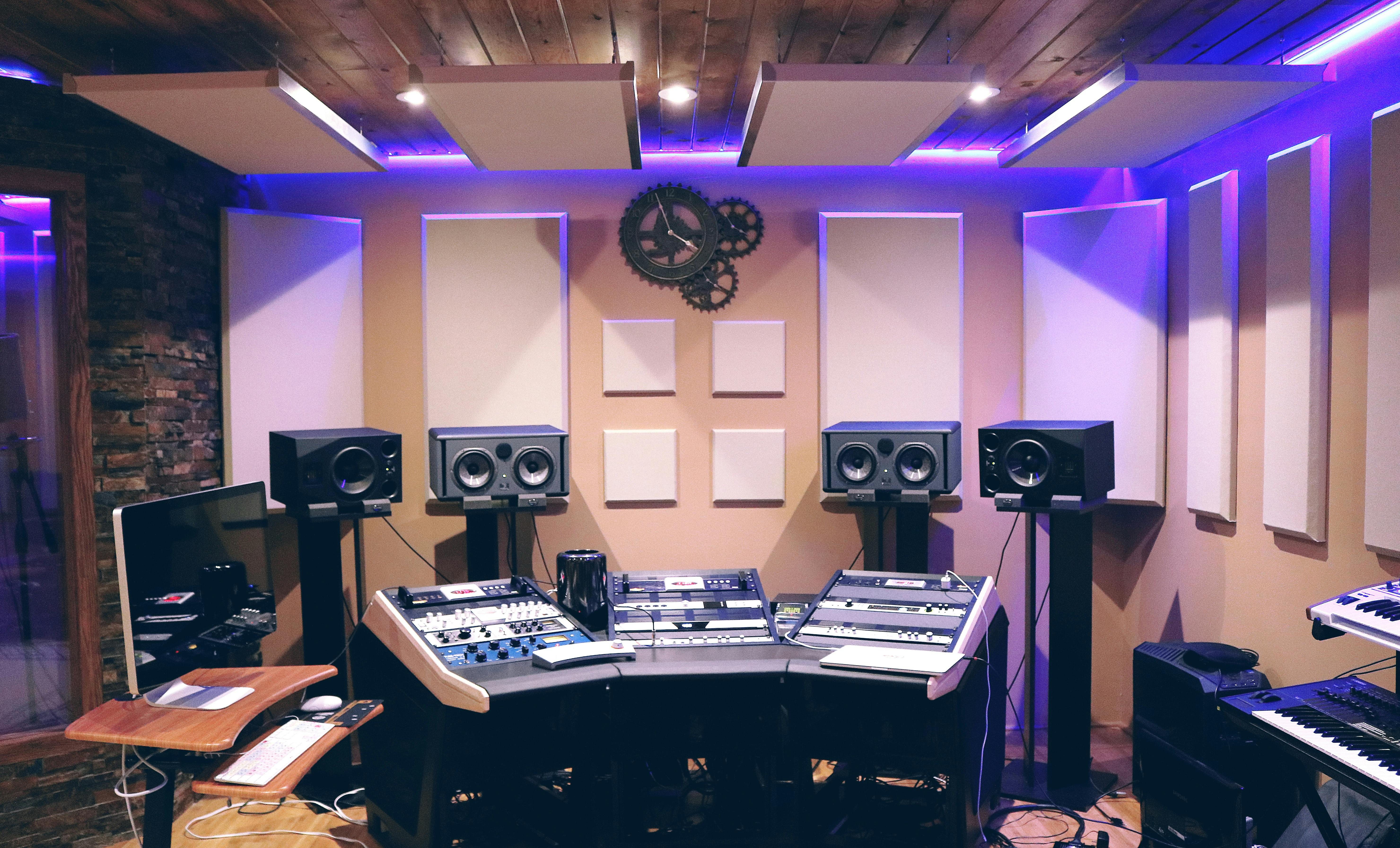
Clarity and sound depth are key. Pro loops are recorded, mixed, and mastered with high-quality instruments, synths, or samples, avoiding muddy frequencies or cheesy sound effects. From a tight drum break to a lush synth pad or a crisp guitar riff, it should all be clean and well-balanced.
Variation and Movement
A good loop doesn't sound tired after a few repeats. Subtle variations—such as subtle rhythmic variations, added textures, or shifting dynamics—make it compelling. Even the smallest changes, such as ghost notes in a drum loop or subtle filter automation on a synth, make a loop sound alive instead of machine-like.
Perfect Timing and Groove
A loop needs to be rhythmic, but not lifeless. The best loops meld into the beat naturally, sustaining the groove without being stiff. Humanized elements, such as slight changes in timing or differences in speed, add character while creating an organized rhythm.
Layering and Depth
Pro loops tend to have a number of layers that add depth to the sound. A hi-hat loop might include subtle shakers in the background to make it feel fuller. It's these subtle elements that provide the sense of space and professionalism you hear in high-end productions.
Flexibility in Mixing
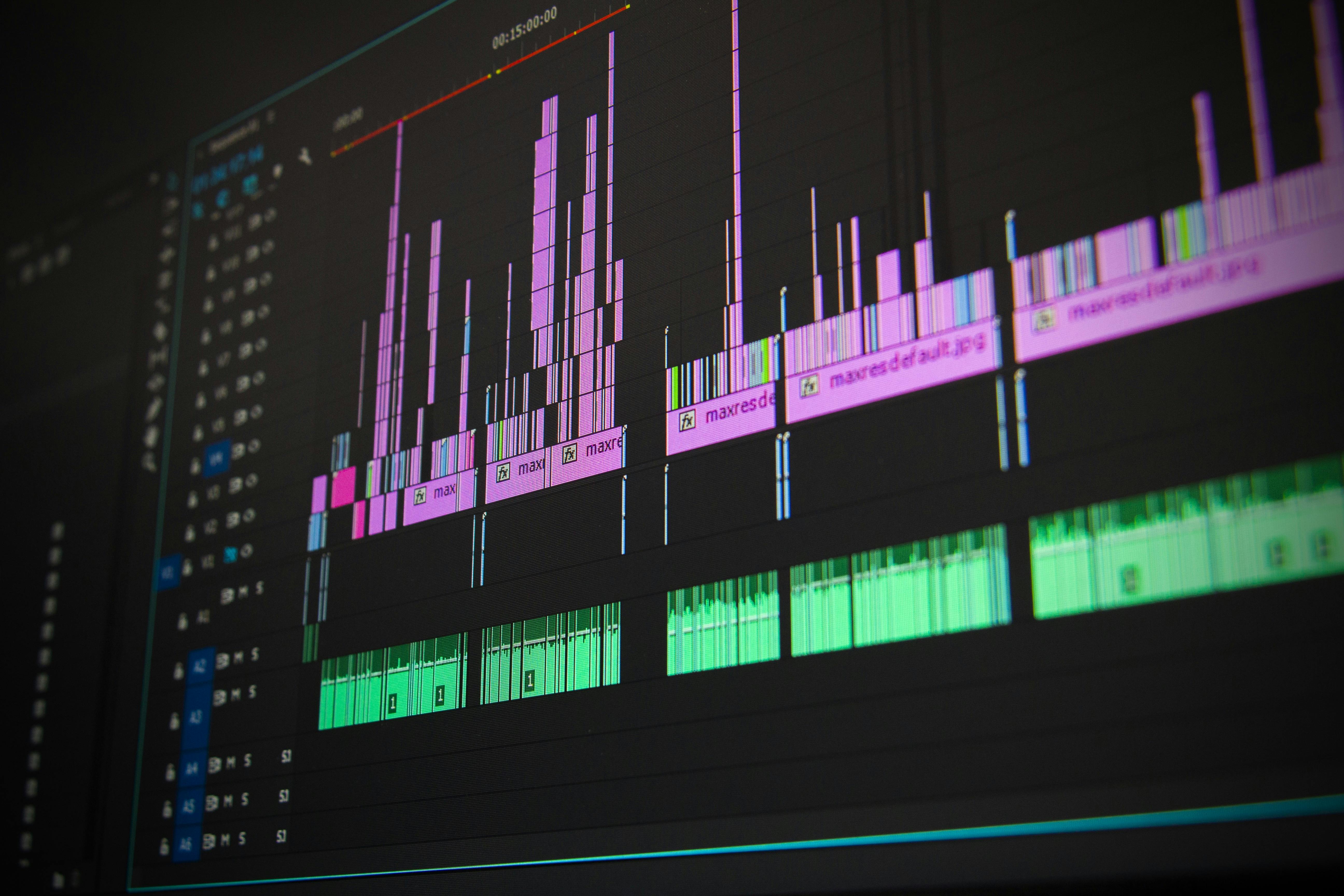
Pro loops are designed to integrate into various projects without clashing with other elements. They don't over-impose, allowing producers to make changes without reworking everything from scratch.
A Step-by-Step Guide on Creating Loops with SOUNDRAW
Let’s walk you through a step-by-step creative process to create loops with AI. SOUNDRAW is so intuitive to use that you’ll have your first AI loop ready to go in a few minutes from now. Let’s get going and show you the power of SOUNDRAW!
Step #1 – Sign In to SOUNDRAW

Start by navigating your browser to soundraw.io. The site is completely mobile optimized, so you’ll get the same experience as the desktop client right from your phone. That’s how easy this is—you don’t need expensive, complicated software tools and mixing equipment. All you need is your phone.
Step #2 – Create Music
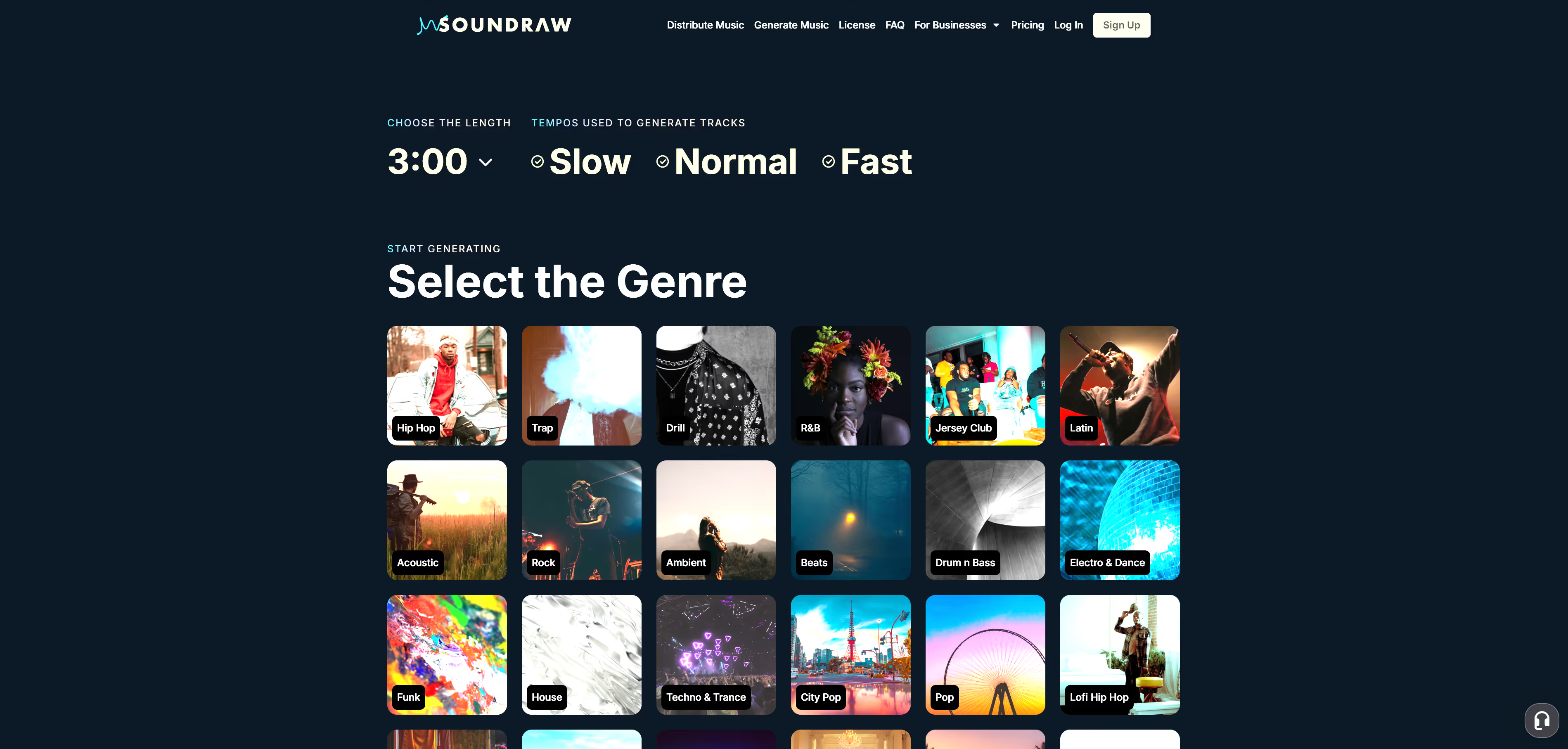
When you land on the site, look at the top ribbon and click the “Create Music” button. That pulls you into the prompting interface to start the creation process and make your first loop.
You’ll see there are options for track length, tempo, and genre below. Set up the first two settings, and choose track lengths from 10 seconds to 5 minutes, with simple, slow, medium, or fast settings for the tempo to get your BPM right.
Next, you’ll see the genre thumbnails below. Choose the thumbnail that’s most relevant to your genre. As soon as you click, the platform pulls you through to the main editing studio to begin the post-production process.
Step #3 – Basic Prompting and Editing
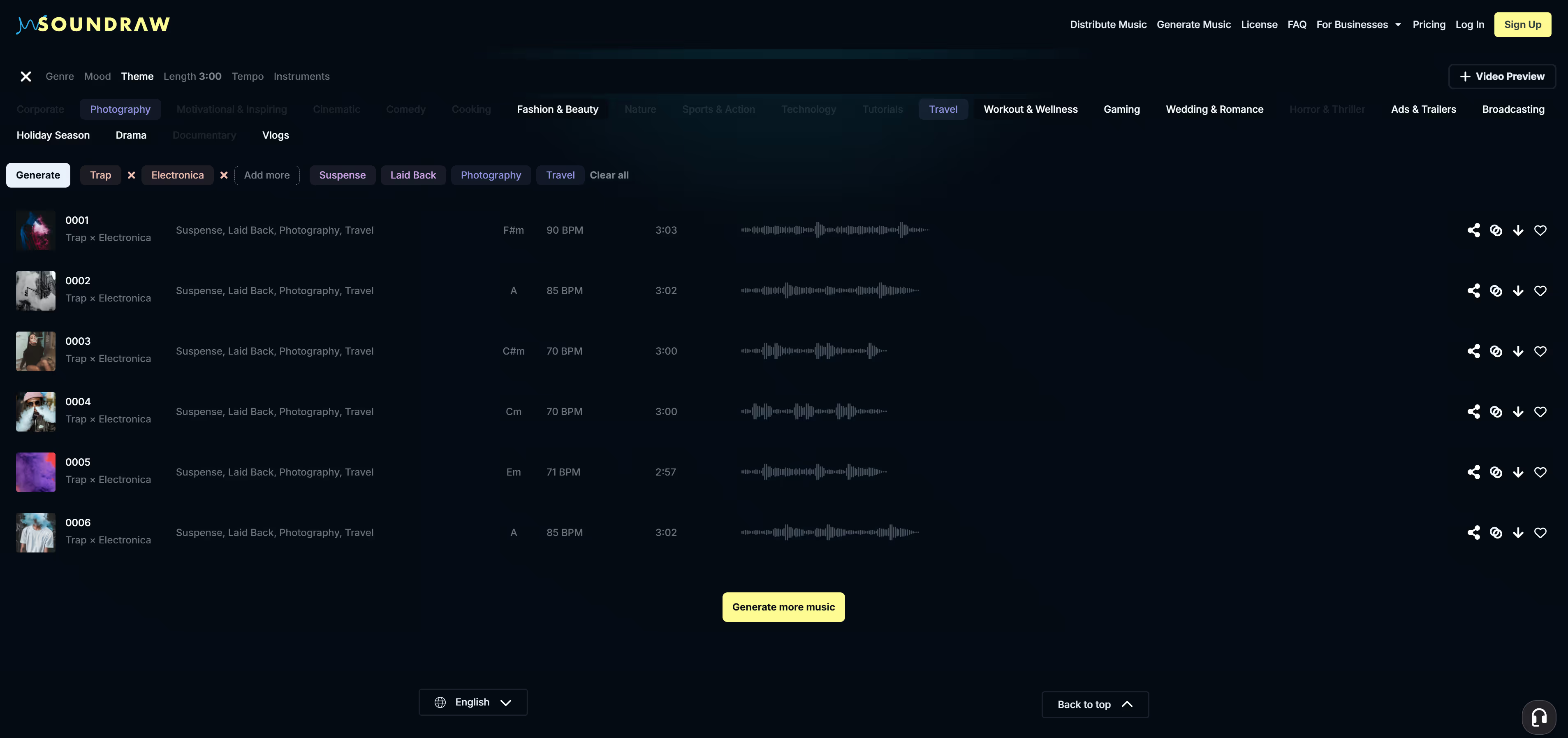
You’ll see the top ribbon has tabs for genre, mood, theme, length, tempo, and instruments. Below that, you see a selection of genres that you can either add or subtract from your results. The main tab below has six AI-generated tracks produced by SOUNDRAW, just for you.
Click on them to launch a preview and choose one of the six you like to start the rest of the editing process. If the results don’t do it for you, click the generate more button at the bottom of the page and the platform spits out 6 new options.
Play around with the mood to create a dark trap beat or a friendly electro track. If you’re looking for commercial industry content, check out the theme tab to get an idea of what suits your needs. The simple click-based prompting system is easy to master and you’ll get a hang of it in no time.
Step #4 – Advanced Post-Production
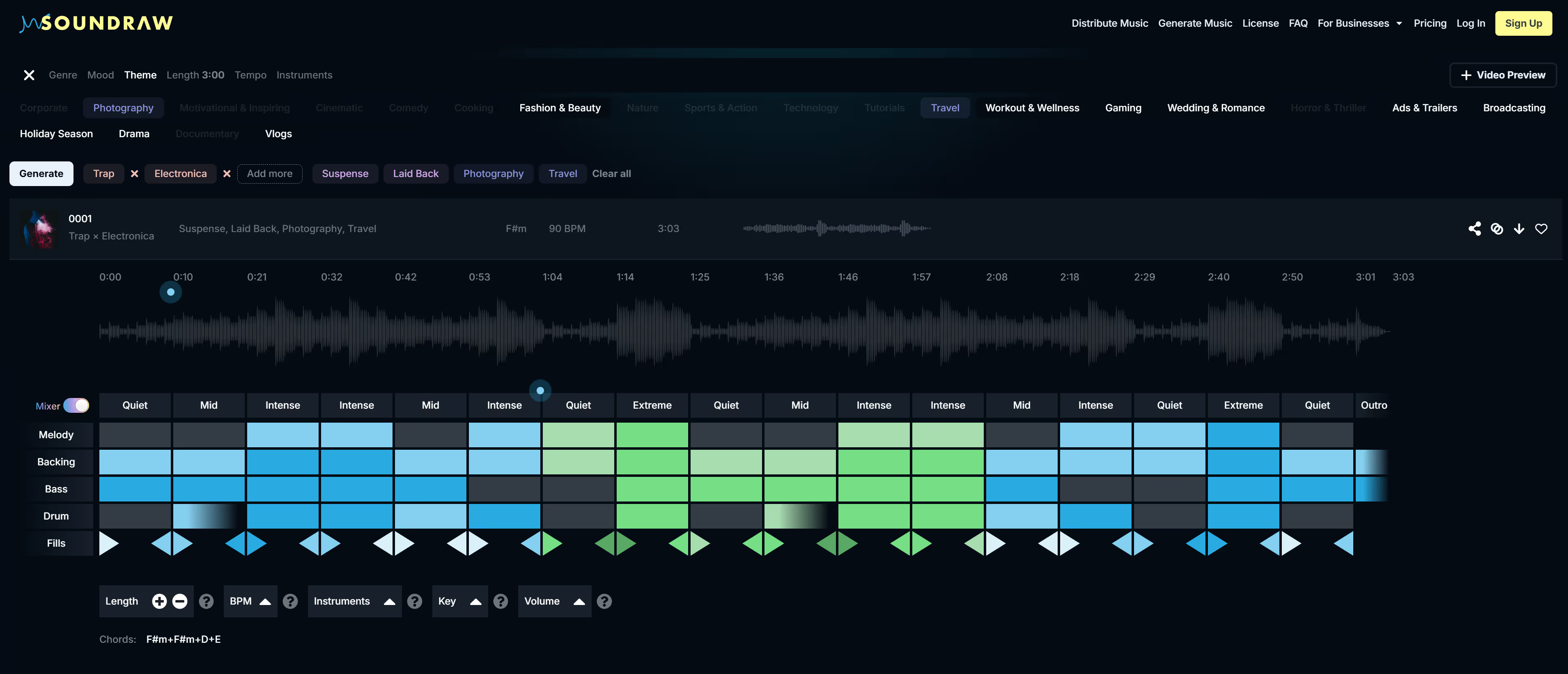
When you’ve got the result you want from the basic editing phase, it’s time to get down and dirty with SOUNDRAWs post-production tools. When you click on a track to preview it and scroll down the page, you’ll see the Mixer editing tool.
It presents grey and blue blocks for each section of the track it creates. Each section contains five music elements; “Melody, backing, drum, bass, and fills.” You can play around with these elements and set up your track the way you want it.
The fills option lets you build or remove transitions between the track sections, giving you more artistic freedom and additional functionality for the post-production process. Underneath the grid, you’ll find another set of post-production tools covering the length of each section, the BPM, instruments, and the key of the song. The standout of this section is the volume setting where you can adjust the individual volume of each element in the track independently.
Step #5 – Finalization
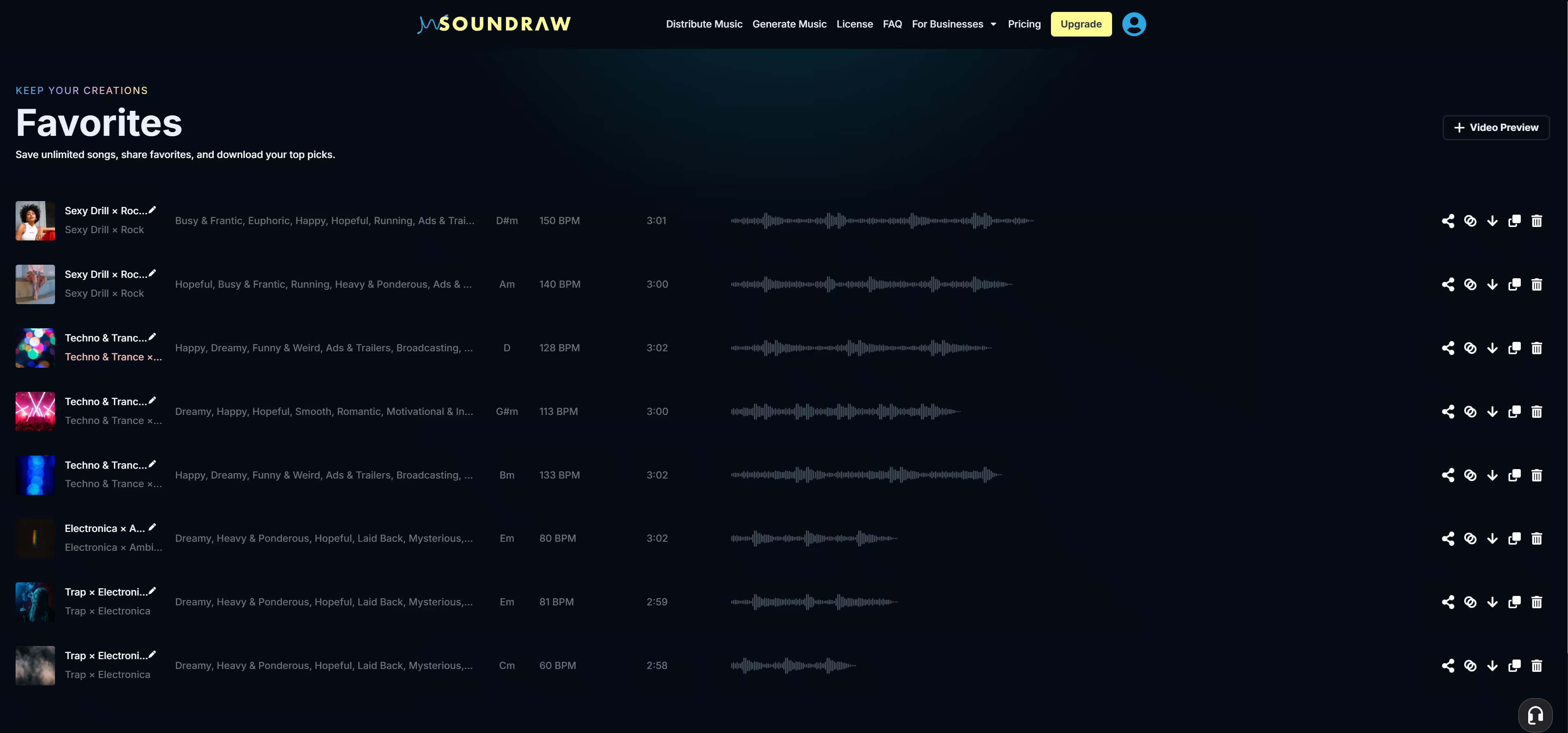
When you finish your new loop, save it in your library by pressing the favorite button and download it later when you get home and have access to a connection. You get a lightweight music studio in your pocket that doesn’t overconsume resources on your phone, or cost you bandwidth to use.
Compare the ease of use in the process we just outlined compared to leading software tools for creating loops. There’s just no comparison in the user simplicity and results it offers. It’s time to get on the AI hype train and leverage the tools the SOUNDRAW AI music platform offers your production projects.
Tips for Adding SOUNDRAW Loops to Projects Like a Pro
Professional loops add rhythm, texture, and movement without causing a track to sound repetitive or machine-like. These technique tips will lead you in integrating loops into your project whether you’re composing music, scoring a video, or designing soundtracks for a video game.
Tip #1 – Customize the Loop—Don't Just Drag and Drop
Alter the tempo, or cut it into smaller segments to re-arrange the track. Adding some instrumental filters, EQ or volume tweaks, or more discreet effects can change things up to make the loop fit.
Tip #2 – Depth and Complexity Layer
Loops are at their best when they back up other sounds instead of carrying the whole project. Try layering multiple loops that have different textures, like combining a soft pad with a percussive rhythm loop. If you're using drums, adding more hi-hats, snares, or kicks can introduce variety without changing the beat and groove.
Tip #3 – Use Subtle Changes for Variation
Repetition is great for structure but gets dull in a hurry. Introduce subtle variations—mute sections, filter frequencies, or effects like fills and independent volume adjustments in the SOUNDRAW Mixer dashboard. Small changes keep the loop engaging and prevent it from getting too predictable.
Tip #4 – Set the Loop's Key and Tempo to Match Your Project
Loops will sound best when they’re in tune with the rest of your track. Correct the pitch if a melodic loop isn’t in the same key, and time-stretch drum loops to fit the tempo. It’s simple to do this in SOUNDRAW with the tempo settings.
Tip #5 – Use Loops as a Foundation, not a Crutch
Loops are intended to inspire, not replace, creativity. Treat them as foundation elements of your track and add your own instruments, alter rhythms, and build on them rather than relying on them alone.
Add SOUNDRAW to Your Music Production Studio Toolkit
You’ve seen the value SOUNDRAW can add to your creative process. Now it’s time to put the rubber to the road and start leveraging the power of AI to advance your music career and create professional loops for your projects.
You can try out SOUNDRAW for free, but if you want to download the test track you created and keep using the tool—you’ll need to take a subscription. You’re probably expecting access to a tool of this caliber to cost hundreds of dollars, but that’s not the case. Today, you can subscribe to SOUNDRAW for as little as $12.99 per month for the Creator package—which gives you unlimited downloads of license-free AI-generated music.
Add SOUNDRAW to your music studio and immerse yourself in the world of AI-powered music for your loops, samples, and tracks.
